A plain-English guide to the Chapter Tools — what they are, why we built them, and how to use them day to day. No jargon. No coding. Just how the work gets done.
Around 90% of what we do at Chapter now runs through our own tools. This guide teaches you all of them.
Most agencies stitch together a dozen expensive subscriptions — one for coverage, one for reports, one for tasks, one for contacts. We got tired of paying for tools that almost did what we wanted. So we built our own, designed around exactly how Chapter works.
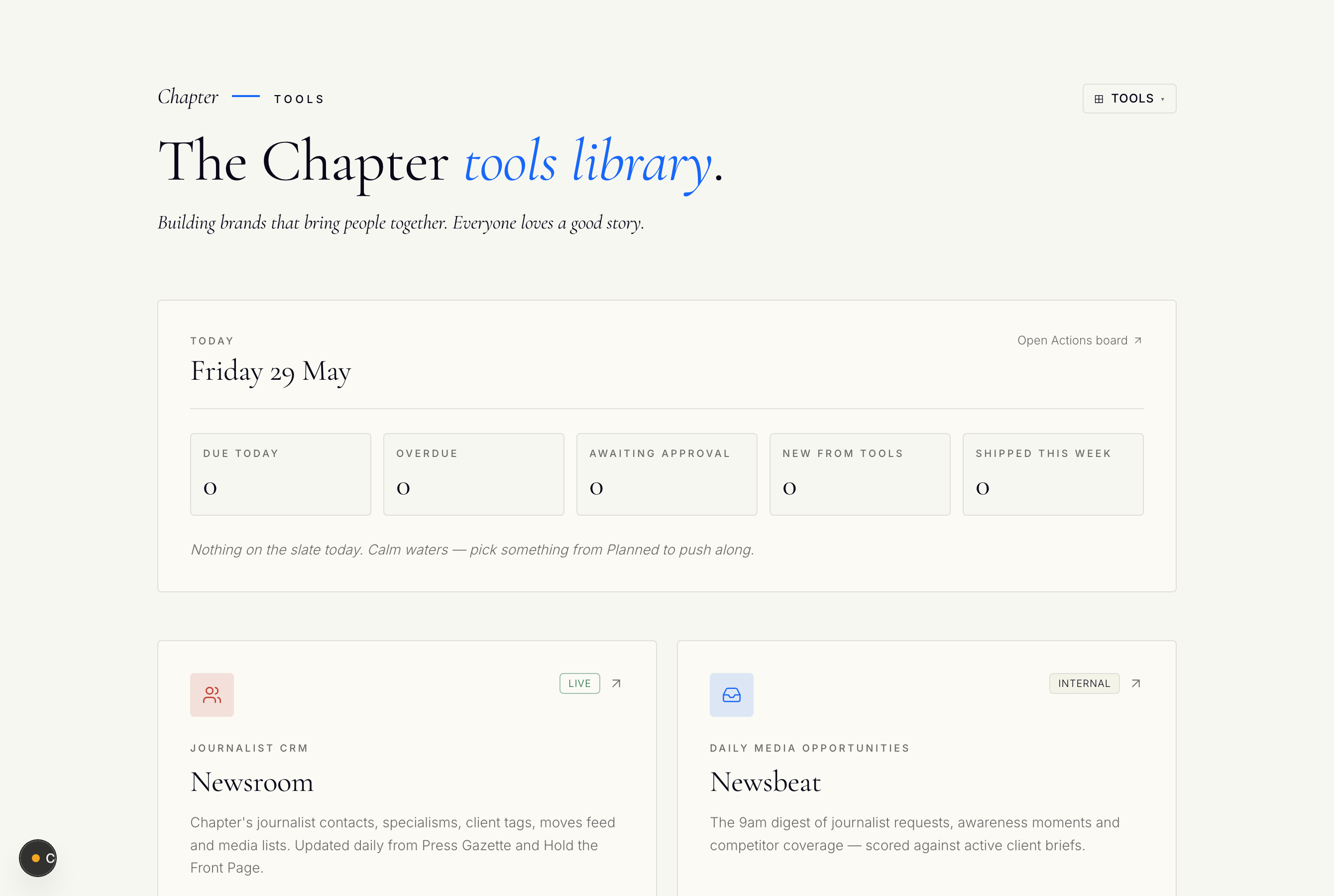
Together they're called Chapter Tools. They share one look, one login feel, and they talk to each other — a journalist request that lands in the morning can become a task, a piece of coverage, and a line in a client's monthly report without you re-typing a thing.
You don't need to be technical. If you've used Coverage Book, Cision, a shared inbox or any normal dashboard, you already have the instincts. This guide just shows you where the buttons are and what they do.
1
2
3
How the tools fit together.
You can think of the tools as one production line. Opportunities come in at one end, work moves through the middle, and results go out to clients at the other end. Here's the flow:
Spot journalist requests & know who to pitch.
Turn ideas into tasks & planned posts.
Track the coverage we earn.
Show clients the results each month.
Strategise sits above all of it — it learns from every tool and helps us decide what to pitch, post and propose next (including for new business).
| Tool | In one line | It replaces | Status |
|---|---|---|---|
| Newsroom | Our journalist contact book | Roxhill / Cision media database | Live |
| Newsbeat | The 9am opportunities email | ResponseSource | Internal |
| Vision | Coverage tracking | Cision monitoring | Internal |
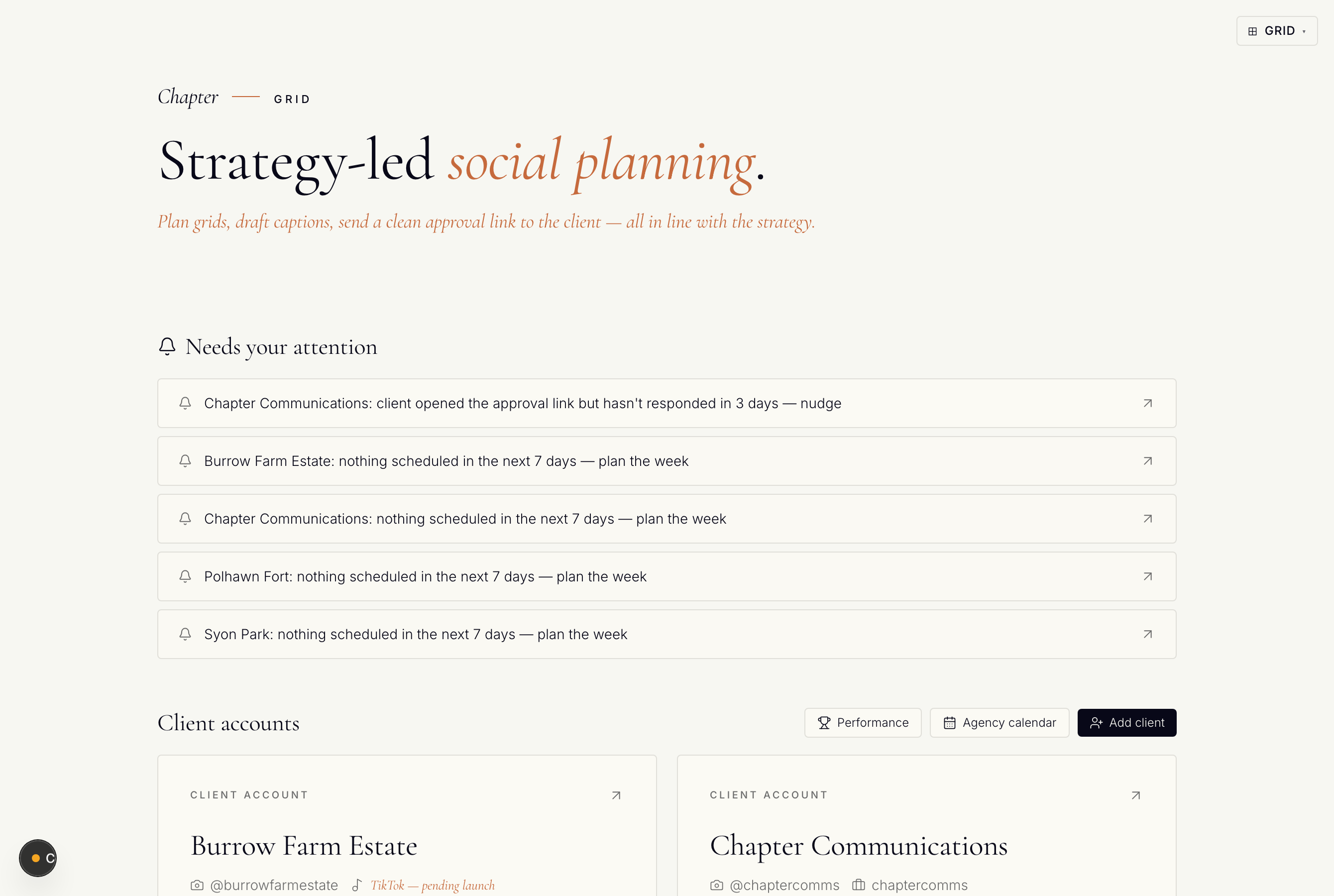
| Grid | Social media planner | Later / Canva | Client-facing |
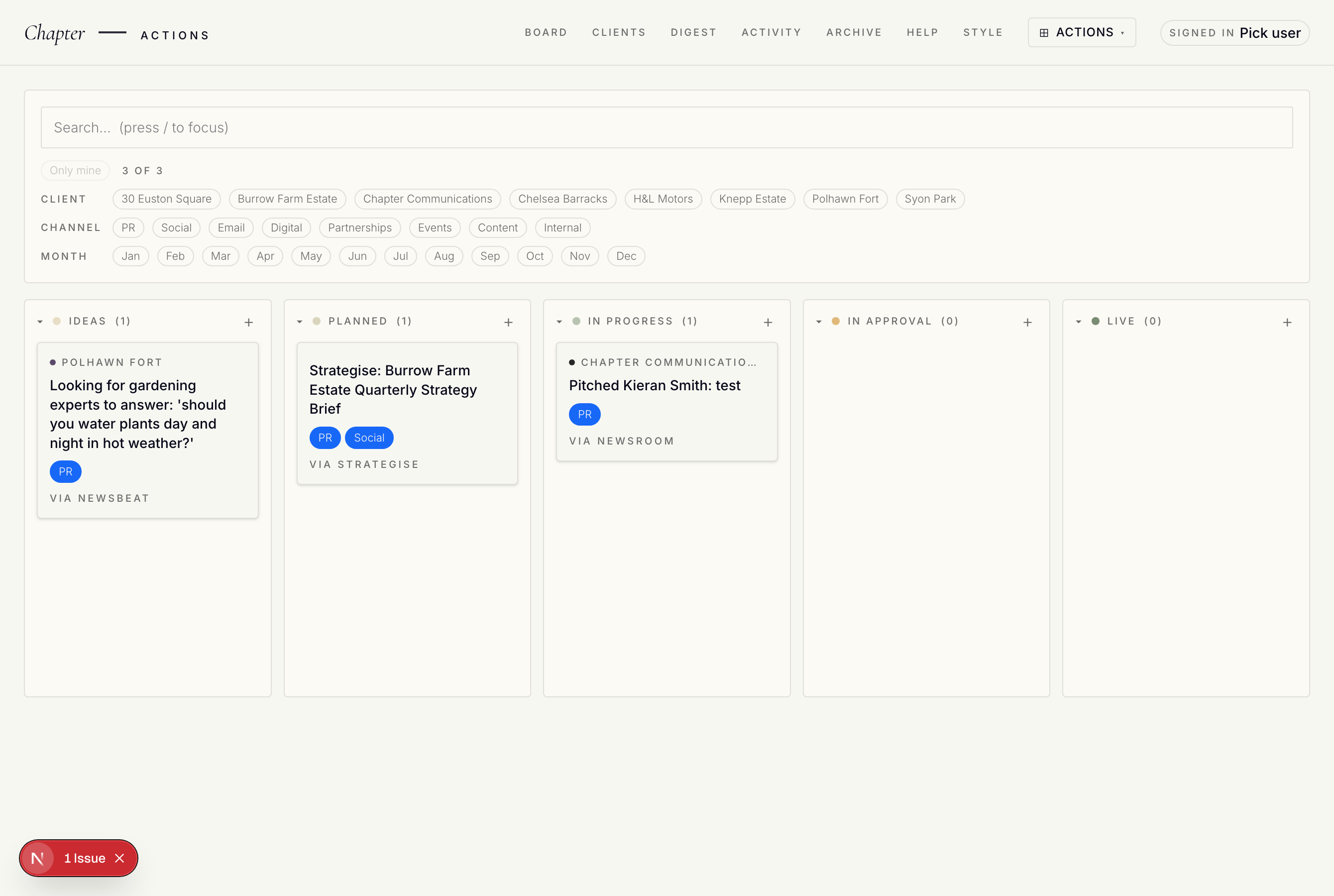
| Actions | The agency to-do board | Productive | Internal |
| Pulse | Monthly client reports | Coverage Book reports | Client-facing |
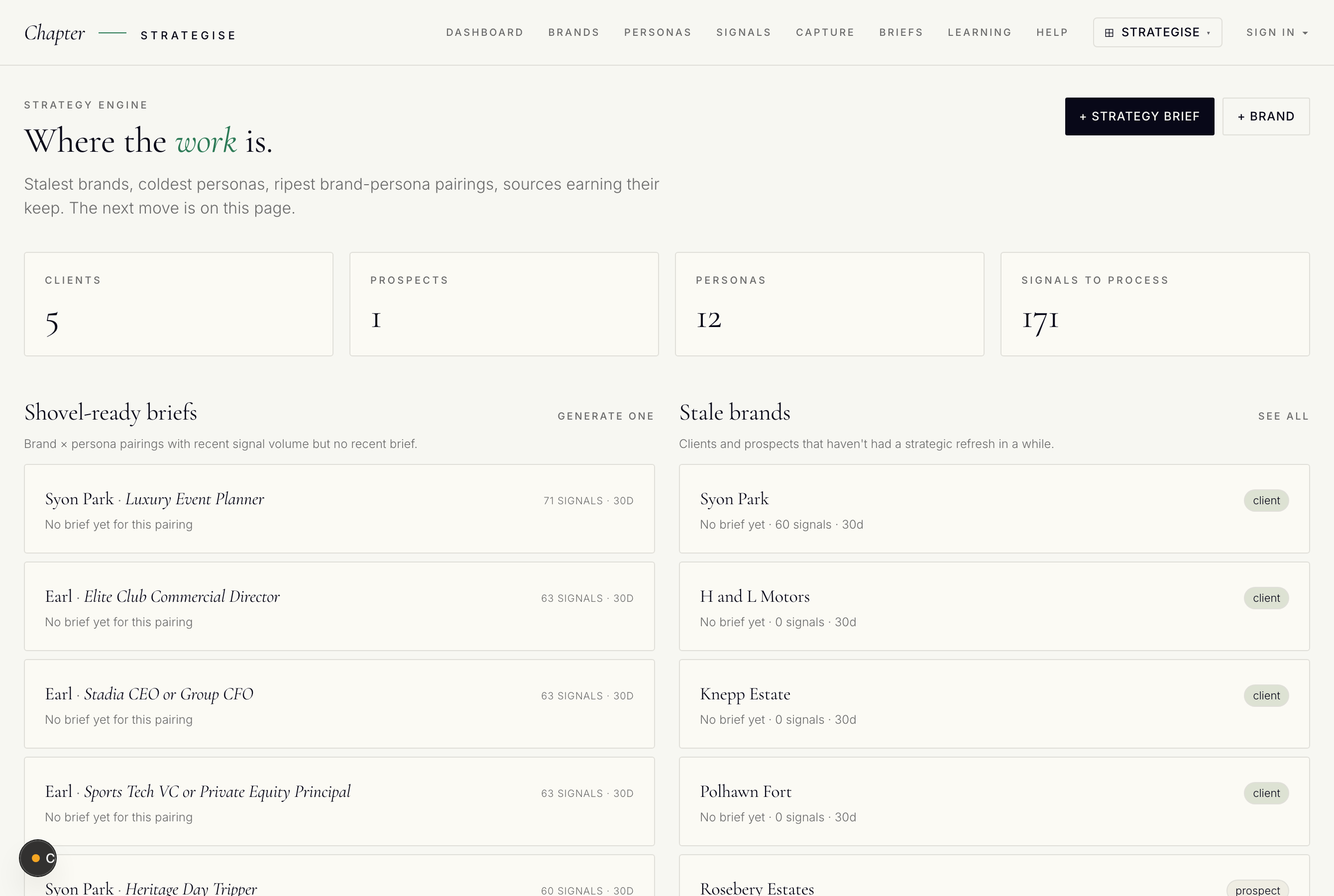
| Strategise | Brand & audience strategy | Manual strategy decks | Internal |
Each tool below follows the same pattern: what it is, why we use it, what it replaces, and how you'll actually use it.
Our own contact book of journalists — who they are, what they cover, and which clients they matter to.
A searchable database of media contacts, tagged by specialism (e.g. travel, food, property) and by which Chapter clients they're relevant to. It also tracks "moves" — when a journalist changes jobs.
So anyone can find the right journalist in seconds and build a targeted media list, instead of relying on one person's memory or out-of-date spreadsheets.
Expensive media databases like Roxhill and Cision. We import contacts and keep them fresh automatically.
It's tuned to our clients, it updates daily from Press Gazette and Hold the Front Page, and it costs us nothing per seat.
Diagram — Newsroom sits behind a secure team login.
The email that lands at 9am every weekday with journalist requests and story angles, already matched to our clients.
A daily digest of journalist requests, awareness days and competitor coverage — scored against each active client brief so the most relevant opportunities float to the top.
It's how we catch reactive PR opportunities first thing, before the inbox fills up. One scan tells you what's worth jumping on today.
ResponseSource — the paid service that emailed journalist requests. Newsbeat does the same but filtered to our clients.
It only shows opportunities that match a live client brief, with a relevance score, so you're not wading through hundreds of irrelevant requests.
Tracks the coverage we earn for clients — online, social, print and broadcast — all in one place.
A daily sweep of where our clients are being mentioned, tagged with sentiment (positive/neutral/negative) and the size of the publication.
So we always know what coverage has landed, can react quickly, and have the evidence ready for monthly reports.
Cision's monitoring — one of the priciest tools agencies pay for.
It's tailored to our client list, you can add print and broadcast clippings by hand, and it feeds straight into Pulse reports.
Diagram — Vision sits behind a secure team login.
Where we plan, draft and get sign-off on social posts for clients — and see how the feed will look.
A planner for Instagram and LinkedIn posts: draft captions, schedule, a calendar view, and a "grid" preview of how the Instagram feed will look. Clients approve posts with a simple link.
It keeps social planning, drafting, approval and export in one place instead of scattered across spreadsheets, email and DMs.
Scheduling tools like Later and design work done ad-hoc in Canva — Grid brings planning, drafting and approval into one place.
Captions can be drafted in the client's voice, clients approve via a magic link (no login), and approved posts export straight to Dropbox.
1
2
3
4
Every piece of work for every client, on one board — from idea to live.
A kanban board: cards move left-to-right through columns as work progresses. Each card is tagged by client, channel and month, with light time-logging and a retainer view.
It's the single source of truth for "what's everyone doing and where is it up to". Nothing falls through the cracks.
Productive — the project-management tool we used to pay for.
It's shaped around how Chapter actually works, and other tools feed it automatically — a Newsbeat opportunity or a Grid post can become an Action without re-typing.
1
2
3
4
The branded monthly report we send each client, showing the results of our work.
An automatically-built, Chapter-branded report covering coverage earned, AI visibility, audience and (where relevant) revenue impact — produced once a month per client.
It turns a month of work into a polished story for the client, with almost no manual assembly.
Hand-built Coverage Book reports and slide decks.
It pulls coverage straight from Vision, looks consistently on-brand, and is far faster to produce.
Helps us decide what to pitch, post and propose — for existing clients and new business.
A living profile for each brand we work with — its truths, its audiences (personas), and live signals pulled from the other tools — that generates targeted PR, marketing and social briefs.
It turns scattered knowledge into a clear strategy, fast — and it's a powerful new-business tool when pitching prospects.
Hours of manual research and strategy decks built from scratch each time.
It learns over time, and because it draws on Newsroom, Newsbeat, Grid and Actions, its suggestions are grounded in what's actually happening.
1
2
3
4
To make it concrete, here's roughly how the tools show up across a normal week.
| When | You're in… | Doing what |
|---|---|---|
| Every morning | Newsbeat email + the hub's Today panel | Scan opportunities, see what's due, plan your day. |
| Reactive PR | Newsbeat → Newsroom → Actions | Spot a request, find the journalist, log the task. |
| Throughout the day | Actions | Move cards along, log a little time. |
| Social planning | Grid | Draft posts, send for client approval, export. |
| When coverage lands | Vision | Check it's captured and tagged correctly. |
| Month-end | Vision → Pulse | Finalise coverage, build and send client reports. |
| New pitch / planning | Strategise | Generate angles and briefs grounded in real signals. |
Most "errors" are minor and have a simple fix. Here are the common ones.
Instagram images in Grid are blank or broken.
You're probably in Safari. Open the same page in Chrome. The posts and captions are fine — it's only the preview thumbnails Safari blocks.
A page won't load, or spins forever.
Refresh the page (Cmd+R). If it still fails, wait a minute and try again — a tool is occasionally updating in the background.
"Please sign in" appears unexpectedly.
This is a normal security timeout. Sign back in from the hub and continue — nothing is lost.
The Newsbeat email didn't arrive.
Check your spam/Other folder first. If it's genuinely missing on a weekday, flag it to Neil — the morning send may need a nudge.
Coverage or a post looks like it's missing.
Check your filters first — you may be filtered to the wrong client, month, or channel. Reset the filters and look again before assuming it's gone.
A red error message you don't understand.
Don't panic and don't keep clicking. Take a screenshot, note what you were doing, and send it to Neil. That's exactly the information needed to fix it quickly.
Plain-English meanings for the few words you'll come across.